On a mobile phone, open the left menu and select "User panel", then "Products and services". On a computer, select "Products and services" from the right menu. This page shows all your sales ads.
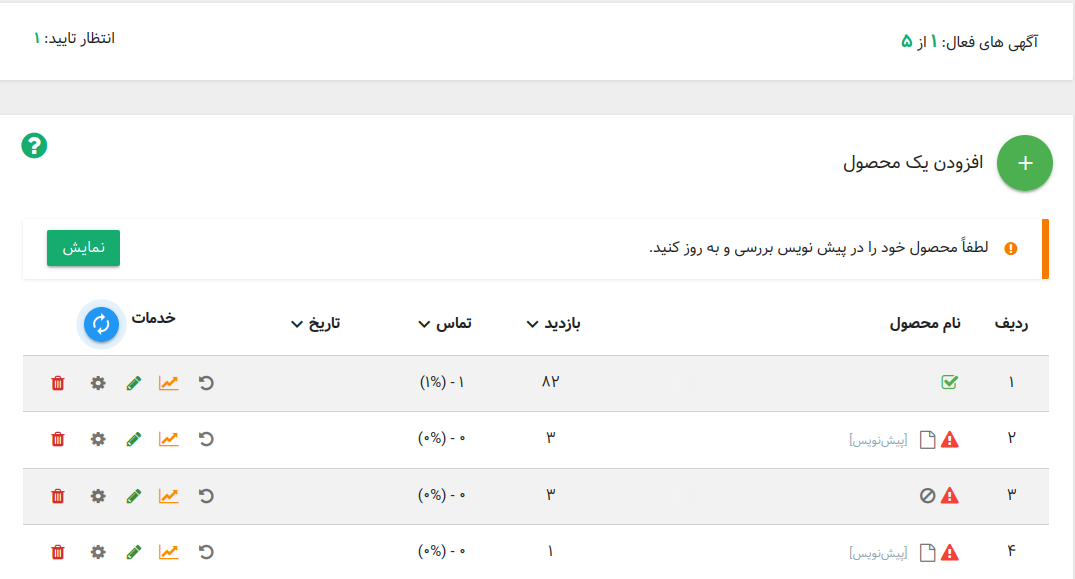
Active ads: The number of your ads and the number of ads you can create are shown here.
Pending approval: The number of ads that the site team has not approved yet.
Use this option to add a new sales ad. Regular users can register up to five ads in total. To upgrade your membership, use this link, or contact the company for advice.
Each ad has indicators that show its status. They are described below.
1 - Product name: Shows the product title. The icons next to it provide additional information.
The site has approved your ad. Its title and description are sufficient, and it has an image. This is the preferred ad status.
The site rejected your ad for a reason. Review it and make the necessary changes.
[Draft] The ad is missing an image, title, or description, so it remains a draft and cannot be reviewed or displayed.
This warning means that the ad needs improvement, for example because its title is too short or its description is incomplete.
2 - Views: This column shows the number of views for your ads. Each user who views an ad for the first time adds one view. Click the view count to see the ad statistics.
3 - Contacts: This column shows contacts for each ad. A contact is counted when a user selects an option such as viewing a phone number, WhatsApp chat, Instagram, Telegram chat, or your website address. The system cannot confirm whether a real phone call took place, so it measures phone-number views instead.
4 - Date: Ads are shown from newest to oldest by default. Click the date to sort them from oldest to newest.
5 - Services:
Use this option to update all ads at once.
Five icons are available in the services column:

Jooyeshgar AI Assistant


.jpg)